
The first start on the TV: two steps and a welcome
Updated .
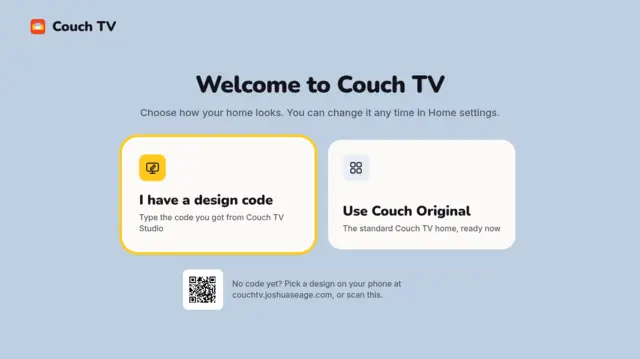
On Couch TV 0.13.10 and newer, the Couch TV app sets up in two steps with the TV remote. Then your new home asks one question: I have a design code, or Use Couch Original.
Step by step
Open Couch TV from your apps. It opens on Step 1 of 2, Make Couch TV your home.
Press the big button. Make it my home: the TV asks which home to use, so choose Couch TV, then Always. Next: this TV keeps its own home on the Home button, so open Couch TV from your apps row. More help says why. Make Home open Couch TV: one press changes the Home button, or press Skip.
Step 2 of 2, Open your new home: press Open the home.
Your new home asks how it looks. I have a design code opens the box for the code from Couch TV Studio. Use Couch Original gives you the standard home. Back does the same.
Next time you open the Couch TV app it says Couch TV is ready, with Open the home and Settings.
Good to know
- The welcome is asked once. A TV that was set up before Couch TV 0.13.10 never sees it.
- No code yet? Scan the QR code on the welcome, pick a design on your phone and press Send to my TV.
- Change your mind later in Home settings, Designs.
- Want the Home button to open Couch TV where the TV kept its own home? See Make the Home button open Couch TV.
- Still stuck? Message Joshua Seage on Instagram with what the TV shows.
Still stuck? Ask the helper, or copy a ready question for your own AI.
Related
- Couch TV's Settings on the TVOn Couch TV 0.13.10 and newer, everything sits in one Settings screen: Edit your home, Phone remote, Undo Couch TV and Help.
- Send a design to your TV with a codePress Send, then Make my code. On the TV: Home settings, Designs, Get a design, and type it.
- Make the Home button open Couch TVOn Google TV and Fire TV, Home opens the maker's home until Couch TV's Home button watch is on. With Couch TV 0.13.9 or newer, one press on the TV does it. Or use a computer once.