
Couch TV's Settings on the TV
Updated .
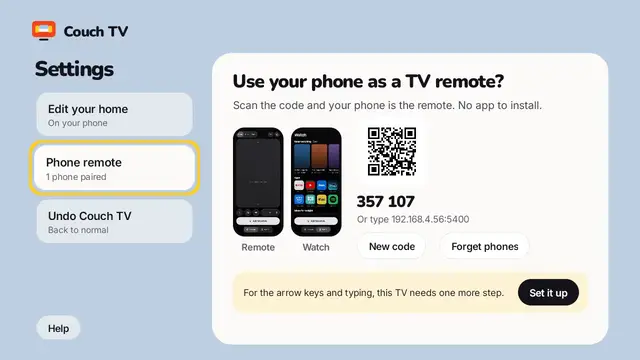
On Couch TV 0.13.10 and newer, everything sits in one Settings screen: Edit your home, Phone remote, Undo Couch TV and Help.
Step by step
Open Couch TV from your apps and press Settings. The list is on the left; what you pick shows on the right.
Edit your home: scan the QR code with your phone. Your phone opens the TV's own page, where you set widgets, your town, calendars and photos.
Phone remote: scan the QR code and your phone is the remote, with no app to install. New code makes a new code. Forget phones unpairs every phone.
A yellow strip under it says this TV needs one more step for the arrow keys and typing? Press Set it up. It walks through the TV's own menus, in the TV's own words, and skips switches that are already on.
Undo Couch TV: puts this TV back to normal. It asks first. See Take Couch TV off your TV.
Help: a QR code to these help pages.
Good to know
- The More button is gone. Everything it had is in Settings.
- Your home's own settings (your town, designs and apps) are in Home settings, the gear on your home.
- Still stuck? Message Joshua Seage on Instagram with what the TV shows.
Still stuck? Ask the helper, or copy a ready question for your own AI.
Related
- The first start on the TV: two steps and a welcomeOn Couch TV 0.13.10 and newer, the Couch TV app sets up in two steps with the TV remote. Then your new home asks one question: I have a design code, or Use Couch Original.
- The phone remoteOpen Couch TV from your apps row, press Settings, then Phone remote. Scan its QR code with your phone's camera. Same Wi-Fi for both.
- The phone can't press keysOpen Home settings on your phone, This TV, and press Check now under Can't connect?. It says the one thing in the way and how to fix it.
- Take Couch TV off your TVOn Couch TV 0.13.10 and newer: open Couch TV, Settings, Undo Couch TV. It gives the Home button back, then offers to uninstall the app. Nothing else on the TV is touched.